
PC operating environment and network settings
This page describes the recommended PC specifications for stable operation of INFINICAM, as well as the various Windows settings required during initial setup.
Recommended PC specifications
Section titled “Recommended PC specifications”These are the recommended PC specifications for development using the SDK and for getting the most out of INFINICAM’s performance.
| Item | Recommended specification |
|---|---|
| OS | Windows 11 Pro (64-bit) (Windows 10 Pro (64-bit) is also supported) |
| CPU | Multi-core processor of Intel Core i7 or higher (AVX2 instruction set support required) |
| Memory (RAM) | 16 GB or more |
| Storage | At least 1 GB of free space (for SDK installation) If saving captured data to disk, a high-speed NVMe SSD is recommended. |
| Interface | [For UC-1.1] USB 3.1 Gen1 Type-C port [For GbE-2] 10GbE or 1GbE compatible LAN port |
Network configuration when using multiple GbE-2 units simultaneously
Section titled “Network configuration when using multiple GbE-2 units simultaneously”When two or more GbE-2 units are connected and used simultaneously, the data transfer volume will exceed 1Gbps, resulting in dropped data (dropped frames) due to insufficient bandwidth. Please prepare the following equipment configuration to prevent this.
- PC side: Add a 10Gbps-capable network board (such as a PCIe expansion card)
- Hub (switch): Use a 10Gbps-capable switching hub
- LAN cable: Use a cable rated CAT6A (Category 6A) or higher
Required initial settings for the GbE-2 (Windows)
Section titled “Required initial settings for the GbE-2 (Windows)”To receive large volumes of image data without dropped frames on the Ethernet model (GbE-2), configure the following two Windows settings.
1. Jumbo packet (jumbo frame) settings
Section titled “1. Jumbo packet (jumbo frame) settings”To maximize data transfer efficiency, extend the packet size limit on the network adapter.
-
Open Device Manager
Right-click the Start button (
Win+X) and click “Device Manager” from the menu. -
Open the network adapter properties
Expand “Network adapters,” right-click the LAN card connected to the camera (e.g. Intel Ethernet Connection…), and open “Properties.”
-
Enable jumbo packets
Open the “Advanced” tab and select “Jumbo Packet” (also called “Jumbo Frame”) from the list of properties. Change the value to
9014 Bytes(or the maximum configurable value) and click “OK.”
2. Windows Firewall permission settings
Section titled “2. Windows Firewall permission settings”For the GbE-2 model to receive and communicate UDP streaming data, you must allow the relevant application through Windows Firewall. Follow the steps below to configure this.
-
Open the firewall settings screen
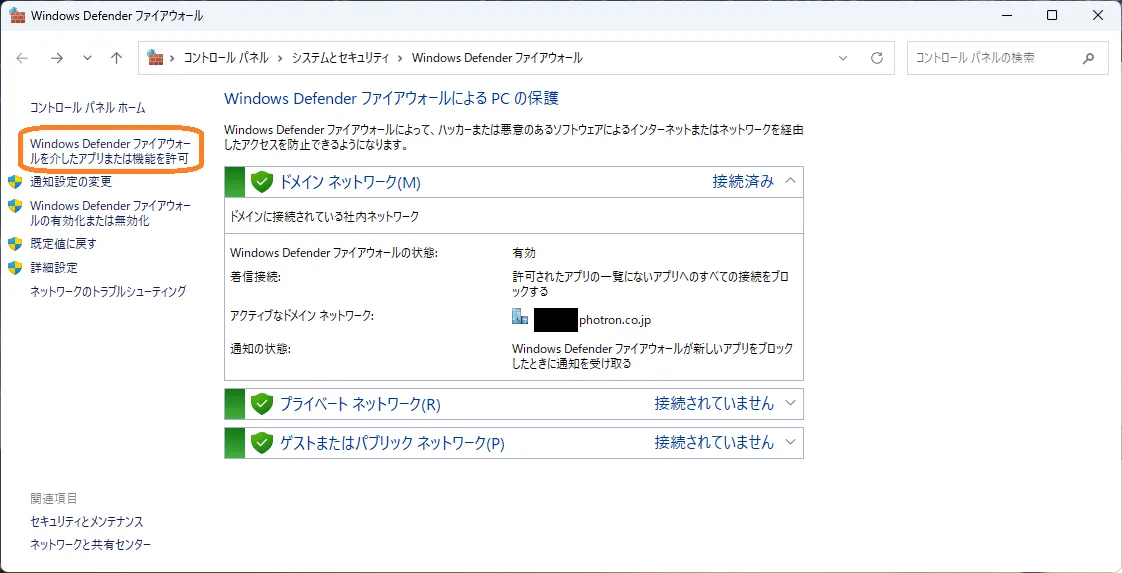
From the Control Panel, open “System and Security” > “Windows Defender Firewall,” then click “Allow an app or feature through Windows Defender Firewall” in the left-hand menu.
-
Open the Add an app screen
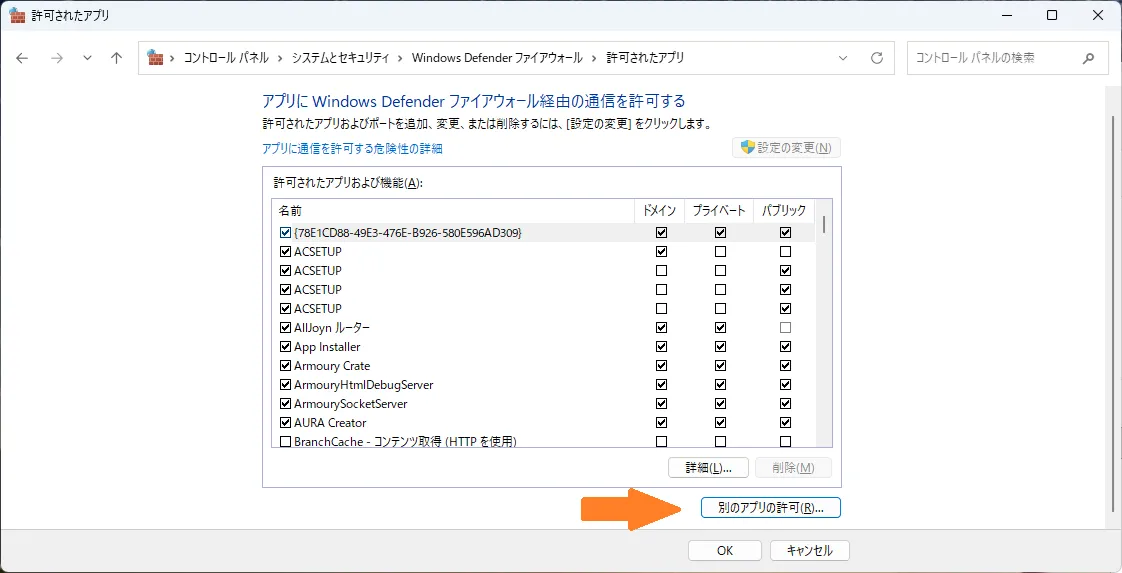
The “Allowed apps” screen is displayed. First, click the [Change settings] button in the upper right to enable administrator privileges, then click the [Allow another app…] button in the lower right.
-
Select and add the program file
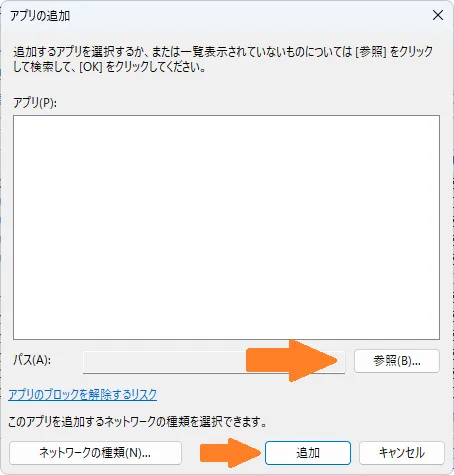
When the “Add an app” screen opens, click the [Browse…] button on the right. A file selection dialog will appear; select and add the INFINICAM control application (executable file).
-
Confirm the network permissions and save
Confirm that the selected app has been added to the list of “Allowed apps and features.” Check the boxes for the network environments you normally use (Private and Public), then click the [OK] button at the bottom to save the settings.