
Recording
Recording is performed with the camera in Streaming mode (Streaming turned On). With Streaming On, every frame is acquired by the PC at the configured frame rate and can be saved to a file.
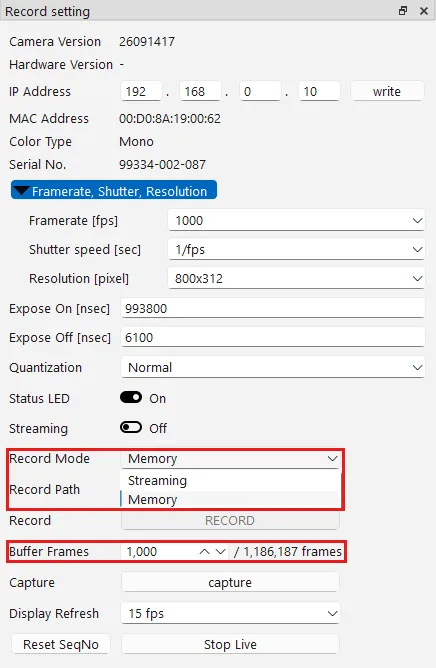
Record Mode
Section titled “Record Mode”Choose the recording method with Record Mode.
| Record Mode | Recording method | Stopping | Frame count field | Maximum recordable frame count |
|---|---|---|---|---|
| Streaming | Writes the acquired images directly to storage such as an SSD. | Stops automatically after the specified number of frames | Record Frames | Determined by the free space on the storage device |
| Memory | Creates a ring buffer in the PC’s memory and records in a loop. When stopped, the images in the buffer are written to a file. | Continues recording until you click STOP RECORD | Buffer Frames | Determined by the PC’s memory capacity |
Recording procedure
Section titled “Recording procedure”-
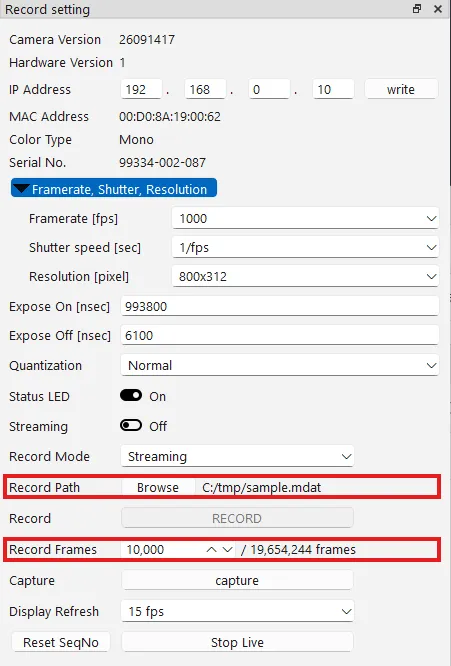
Choose the Record Mode. Click Browse next to Record Path and specify the file to save to.
-
Enter the number of frames.
- If Record Mode is Streaming: enter the number of frames to record in Record Frames. The number on the right (for example,
/ 19,654,244 frames) is the maximum number of frames determined by the free space on the storage device. - If Record Mode is Memory: enter the number of frames to hold in the ring buffer in Buffer Frames. The number on the right (for example,
/ 1,186,187 frames) is the maximum number of frames determined by the PC’s memory capacity.
- If Record Mode is Streaming: enter the number of frames to record in Record Frames. The number on the right (for example,
-
Turn Streaming On. The RECORD button becomes clickable. The lower left of the screen shows the frame rate actually being acquired (for example,
FPS: 999.6).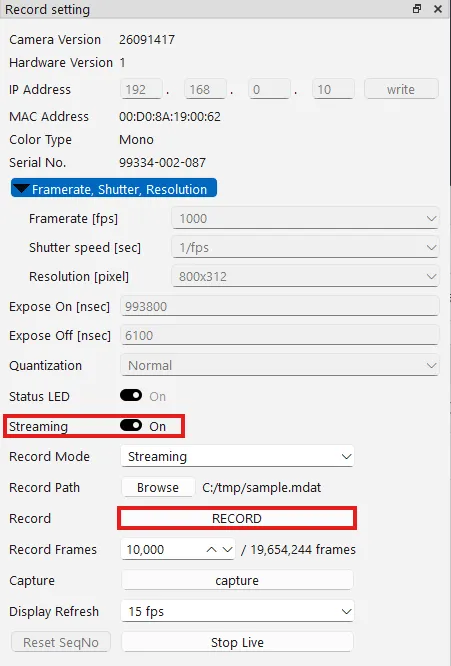
-
Click RECORD to start recording. While recording, the upper right of the screen shows the number of frames recorded and the elapsed time (for example,
REC 2615/10000 (2.6s)).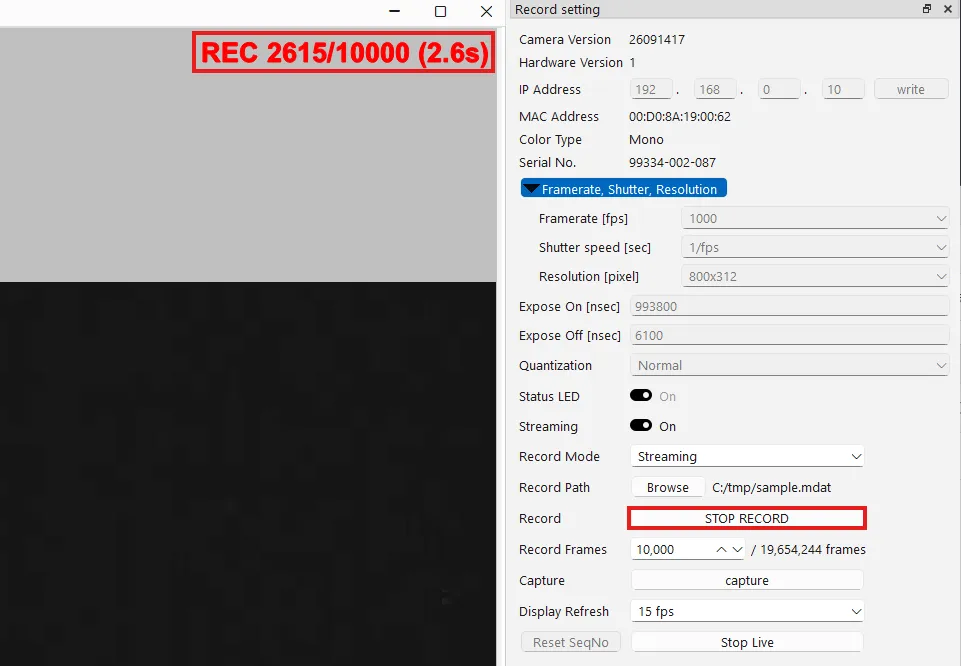
-
Finish recording.
- If Record Mode is Streaming: recording stops automatically once the specified number of frames has been recorded. To stop partway through, click STOP RECORD.
- If Record Mode is Memory: clicking STOP RECORD ends the recording, and the images in the buffer are written to a file.
-
Once recording is finished, turn Streaming Off to return to live view.
Saved files
Section titled “Saved files”Recording creates two files, .cih (capture information) and .mdat (image data), using the name specified in Record Path.
If you record again under the same name, the files are saved with a sequential number appended, such as sample_001 and sample_002.
For how to play back a recorded file, see Playback.